Score
How To Add An Instagram Bot To Discord 226uiA
Integrating Instagram updates into Discord through automation can enhance brand communication and community engagement. By utilizing tools like RSS.app, brands can streamline their social media presence and keep team members informed with minimal effort, allowing for better monitoring of brand activity and competitor trends.
Source: If you run a community or a team workspace, getting Instagram updates into Discord keeps everyone on the same page. In this guide, you will turn any public Instagram profile into automated Discord posts using RSS.app. No code. No maintenance.
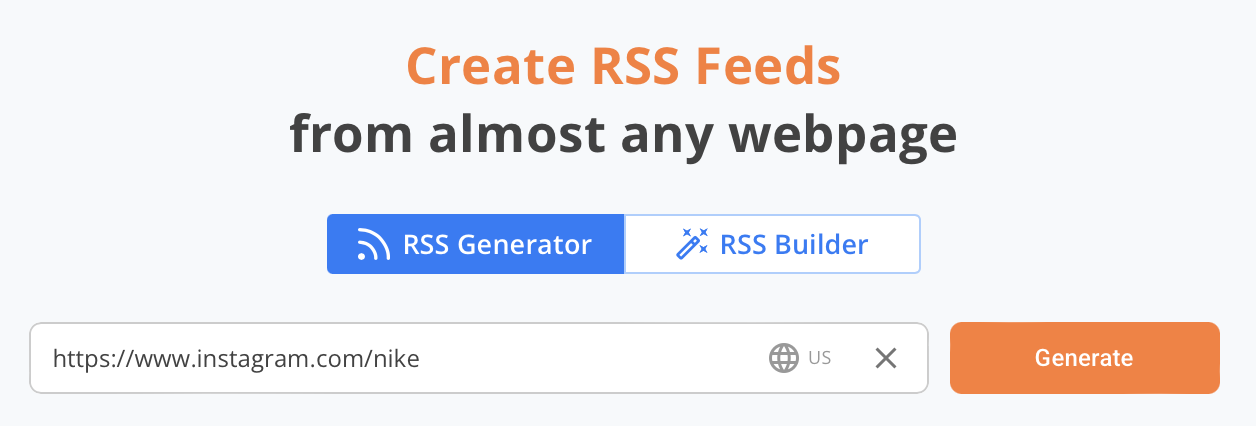
Set it once and let it run. What you will need A public Instagram profile URL. Permission in Discord to authorize apps and post to the chosen channel. An RSS.app account. Step by step 1) Create an Instagram RSS feed Go to the RSS Generator and paste the URL of any public Instagram profile. Click Generate then Save To My Feeds. 2) Connect to Discord Click the Discord icon. You will be redirected to Discord to authorize the connection with a specific server. Grant permissions and confirm. 3) Choose your channel in RSS.app After authorization, return to RSS.app.
Pick the server channel where the posts should appear and click Save. 4) Confirm delivery RSS.app sends the last 3 Instagram posts immediately. Open Discord to confirm you see them in the selected channel. 5) Send older posts on demand Want to backfill a highlight or a recent post that did not auto trigger? Click Send Post for any item in your feed. Customize the message format Open the Settings tab and toggle what to include in each Discord message.
Double-check how it looks in the Preview on the right side of the screen and don't forget to click Save. Add Webhook to change the bot name and avatar so your automation matches your server style Title Description Image URL only Custom CTA button like “Comment here” that links to the original post Make it smarter with Actions Open the Actions tab to add logic: Role mentions for all posts. Example: ping @design when your brand posts on Instagram. Keyword-based mentions.
Example: mention @mods when a post contains “giveaway” or “contest”. Ignore posts with keywords you do not want to surface. Verify and audit with History Use the History tab to see a time stamped log of what was sent, to which channel, and when. If a user reports a missing alert, you can confirm delivery or retry: Practical use cases Brand or creator monitoring. Keep your team updated when a brand or partner posts. Community highlights. Share new posts from your own Instagram with your members. Competitor tracking. Collect inspiration and watch trends in one place. Support and moderation.
Trigger role mentions if posts contain sensitive keywords. Frequently asked questions Does this work with private Instagram accounts?No. The profile must be public. How fast do posts appear?We check the source URL for updates and add them to your feed according to a set Refresh Rate. As soon as a post is added to your feed, it is sent to your Discord automatically. Check out the Pricing Page for more info on Refresh Rates: https://rss.app/pricing. Can I connect multiple Instagram profiles to the same channel? Yes.
Article truncated for readability. Read the full piece →
While the integration of social media tools is useful for brand communication, it is a relatively common practice and may not significantly impact the broader brand/design industry.
Weekly digest
Get the Signal digest
Every Monday morning — the top 3 brand trends, 10 high-signal articles, and one emerging signal to watch.
No spam. Unsubscribe anytime.